IAB TCF settings
The IAB TCF section holds the settings that apply to regions where IAB TCF is the policy framework. From here you choose which vendor list your consent dialog offers, how it treats vendors’ legitimate interest claims, and which purposes, special features and stacks the dialog presents.
To open it, go to Domains, click the domain you want to configure, open the Settings tab and select IAB TCF in the left menu.
When the section appears
The IAB TCF section is only shown when both of the following are true:
- Your subscription plan includes IAB TCF. On plans without it, the section does not exist.
- At least one region on the domain uses an IAB TCF policy framework. Selecting one reveals the section and its menu entry immediately, without saving first, and removing the last one hides them again.
Policy frameworks are set per region under Regional settings. See Regions & Policy frameworks for how to set one.
Vendor list
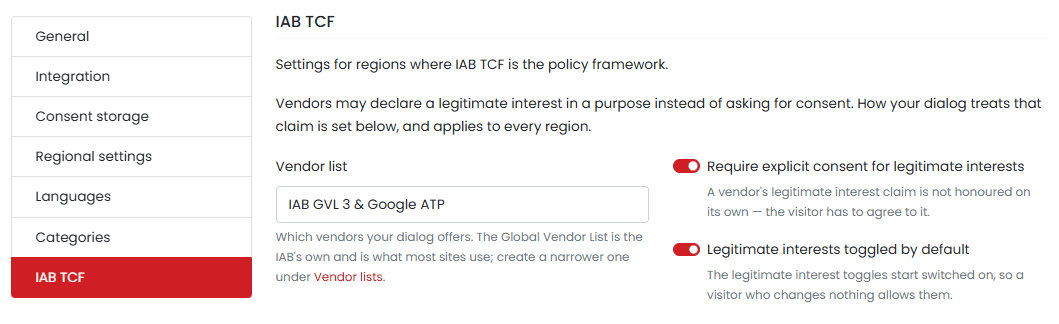
The Vendor list dropdown controls which vendors your consent dialog offers. This setting applies to the whole domain, not to an individual region.
Two standard lists cover most sites, and they are what the preconfigured templates assign. Both are built on IAB GVL 3, the Global Vendor List used with IAB TCF 2.3:
- Global Vendor List (IAB GVL 3) — the IAB’s own list, containing every vendor registered with the TCF. Consent for these vendors is carried in the TC string.
- IAB GVL 3 & Google ATP — the same list plus Google’s Ad Technology Providers. Google ATPs are not registered on the IAB GVL, so consent for them cannot be carried in the TC string; it is signalled separately through Google’s Additional Consent (AC) string.
Choosing the IAB TCF 2.3 template when you add a domain assigns IAB GVL 3 & Google ATP. That is the list to use if you serve Google ads, because it is what covers Google’s ad tech partners in addition to the IAB-registered vendors. See Google Additional Consent Mode v2 for how the AC string works, and Preconfigured settings for what else the template sets.
If neither standard list suits you, create a custom list and select it here.
Creating and editing vendor lists has not moved — it is still done under Account → Vendor lists, and the standard lists cannot be modified. See Vendors for how to build a custom list from one of them. This section only selects which list the domain uses.
Legitimate interests
Vendors may declare a legitimate interest in a purpose instead of asking for consent. How your dialog treats that claim is set here, and applies to every region on the domain. Two settings control it:
- Require explicit consent for legitimate interests — a vendor’s legitimate interest claim is not honoured on its own. The visitor has to agree to it.
- Legitimate interests toggled by default — the legitimate interest toggles start switched on, so a visitor who changes nothing allows them.
If you do not see these settings, your domain is running an older version of the CookieHub widget. We strongly recommend updating to the latest version.
Presented in your consent dialog
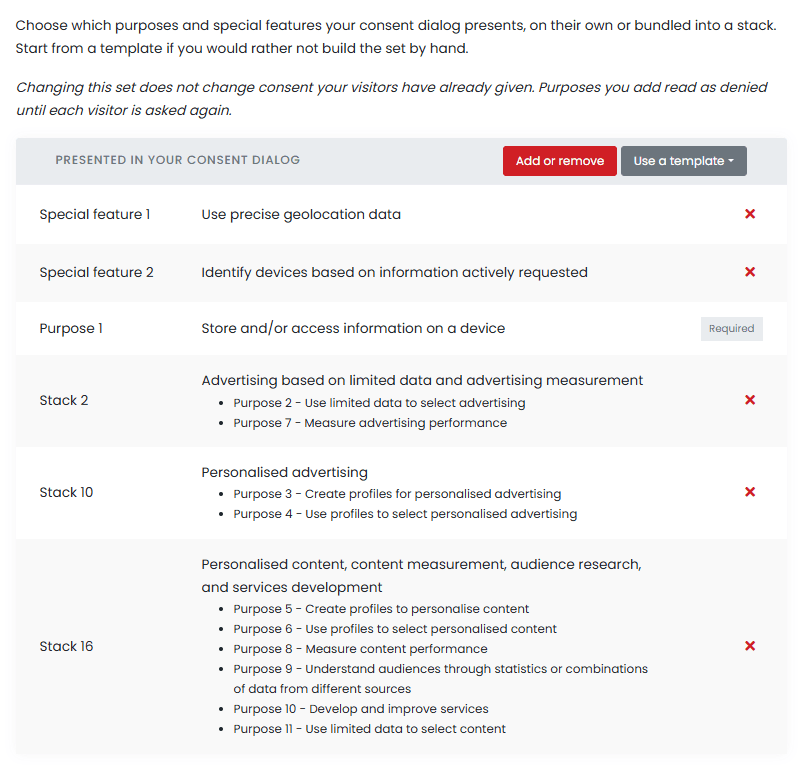
This part of the section controls which purposes and special features your consent dialog presents, either on their own or bundled into a stack. A stack is a single item in the dialog that covers several purposes at once, which keeps the dialog shorter than listing each purpose separately.
The table lists one row per item presented, showing its IAB number, its name from the IAB list, and a control to remove it. A stack’s row lists the purposes it covers underneath its name, so you can see what a single row is doing on your behalf.
Two things about the table are fixed:
- Purpose 1 cannot be removed. It carries a Required badge instead of a remove control, because everything else depends on it.
- The order is not editable and there is no drag handle. It is always special features, then purposes, then stacks, ascending by number within each group. This is the order the consent dialog uses, so what you see here is what visitors see.
Add or remove
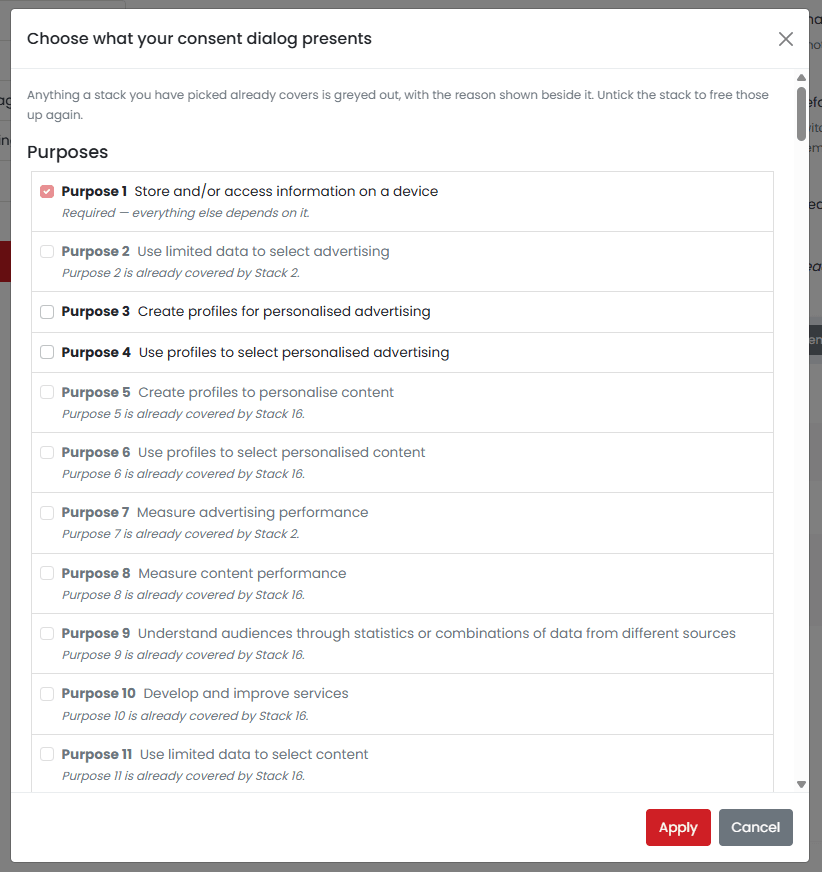
The Add or remove button opens a dialog listing the whole catalogue, split into Purposes, Special features and Stacks, with everything you currently present already ticked. It both adds and removes: unticking an item is the second way to take it out of the set.
TCF requires that nothing is presented twice, and the dialog enforces that as you tick rather than failing when you save:
- An option that would duplicate something you already present is disabled and greyed out, with the reason printed on the option itself — for example that a purpose is already covered by a stack you have chosen, or already selected on its own.
- Purpose 1 is ticked and disabled, because it is required.
- Unticking a stack frees everything it was covering, and those options become selectable again.
Nothing is stored until you save the page.
Templates
The Use a template dropdown offers two starting points if you would rather not build the set by hand. Applying a template replaces the whole set, and still needs a save.
- CookieHub default — what a new TCF domain starts with. Presents every purpose and special feature, personalised advertising included.
- Old default — everything except personalised advertising. Visitors are never asked about it, so they can never allow it.
Personalised advertising
Whether your dialog can collect consent for personalised advertising depends on whether it presents purposes 3 and 4, which are bundled into stack 10.
| Domain | Presented by default | Result |
|---|---|---|
| New TCF domains | Purpose 1, stack 2, stack 10, stack 16 and both special features | Personalised advertising is offered, so a visitor can allow it. |
| Existing TCF domains | Purpose 1, stack 2, stack 16 and both special features | Purposes 3 and 4 are never presented, so personalised advertising can never be granted, no matter what a visitor clicks. |
Existing domains present exactly what they presented before this section was introduced. Nothing was changed underneath them, so adding personalised advertising is a deliberate action.
To start collecting consent for personalised advertising:
- Open the IAB TCF section for the domain.
- Either click Use a template and choose CookieHub default, or click Add or remove and tick Stack 10.
- Save the changes.
- Publish them using the Publish pending changes or Save & publish button. Changes are not deployed to your website until you publish.
Rules
The set you present has to satisfy four rules. The dialog enforces them as you edit, so you should not be able to save an invalid set.
- Purpose 1 has to be presented. Everything else depends on it, and leaving it out denies several Google Consent Mode signals at once.
- Nothing may be presented twice. A purpose covered by a stack you have chosen cannot also be presented on its own, and the same purpose cannot come from two different stacks. This applies to special features too, because one stack carries them.
- The set cannot be empty. Your consent dialog has to present at least one purpose, special feature or stack.
- Features and special purposes are not configurable. Under TCF they are disclosure only and carry no visitor choice, which is why they do not appear in the picker.