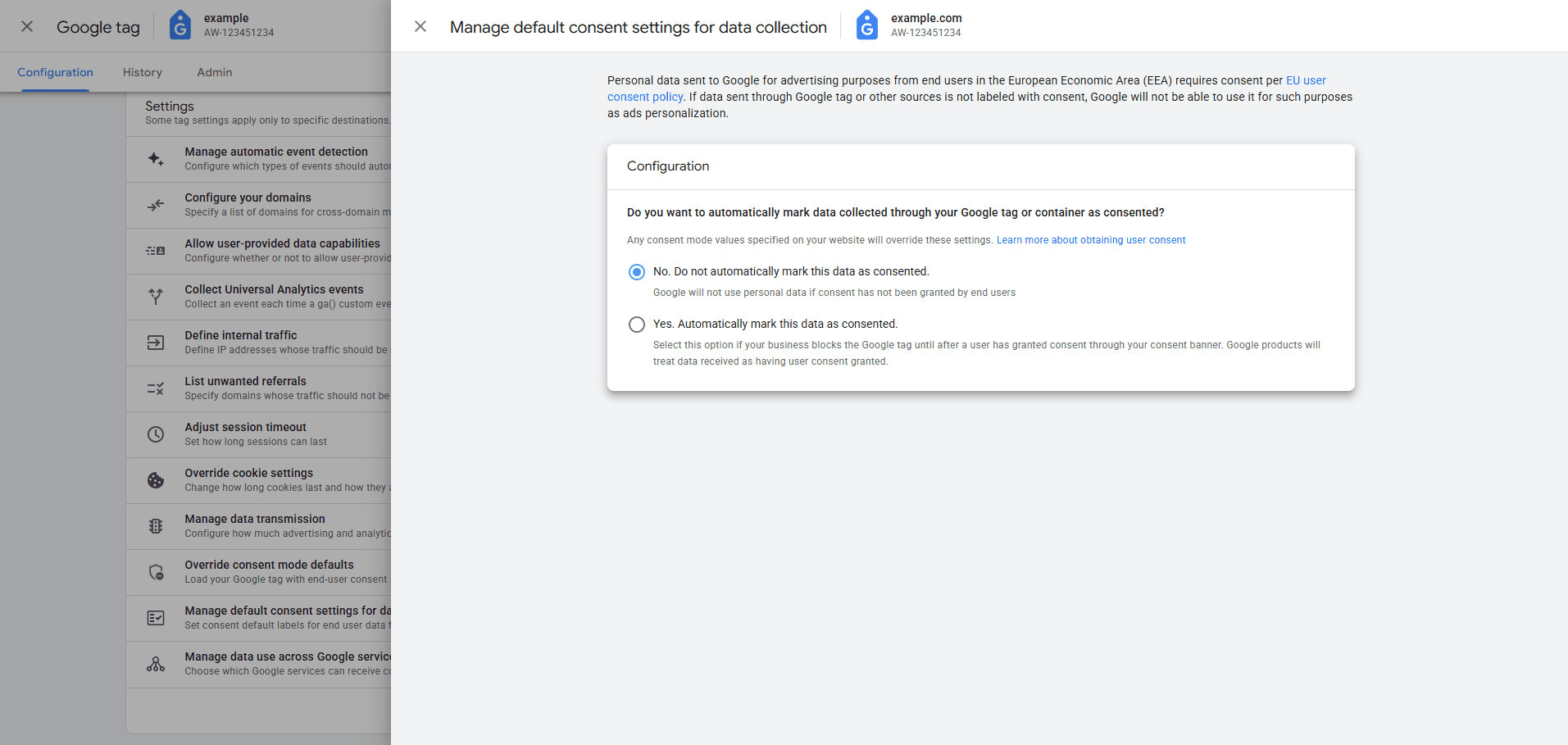
Disable Google’s “Default consent settings”
Google Consent Mode can be configured from multiple Google UIs. Some settings can interfere with the consent defaults set by CookieHub and other CMPs.
This guide shows where Google exposes the Default consent settings and how to disable them so CookieHub remains the source of truth for consent.
What “Default consent settings” does
Google provides a setting that asks:
“Do you want to automatically mark data collected through your Google tag or container as consented?”
If enabled, Google may treat data as consented by default, even when a user has not made a choice. This can conflict with GDPR and other privacy regulations where consent must be collected before data is used for advertising or analytics purposes.
To stay compliant, make sure “No. Do not automatically mark this data as consented.” is selected.
Google Analytics (GA4)
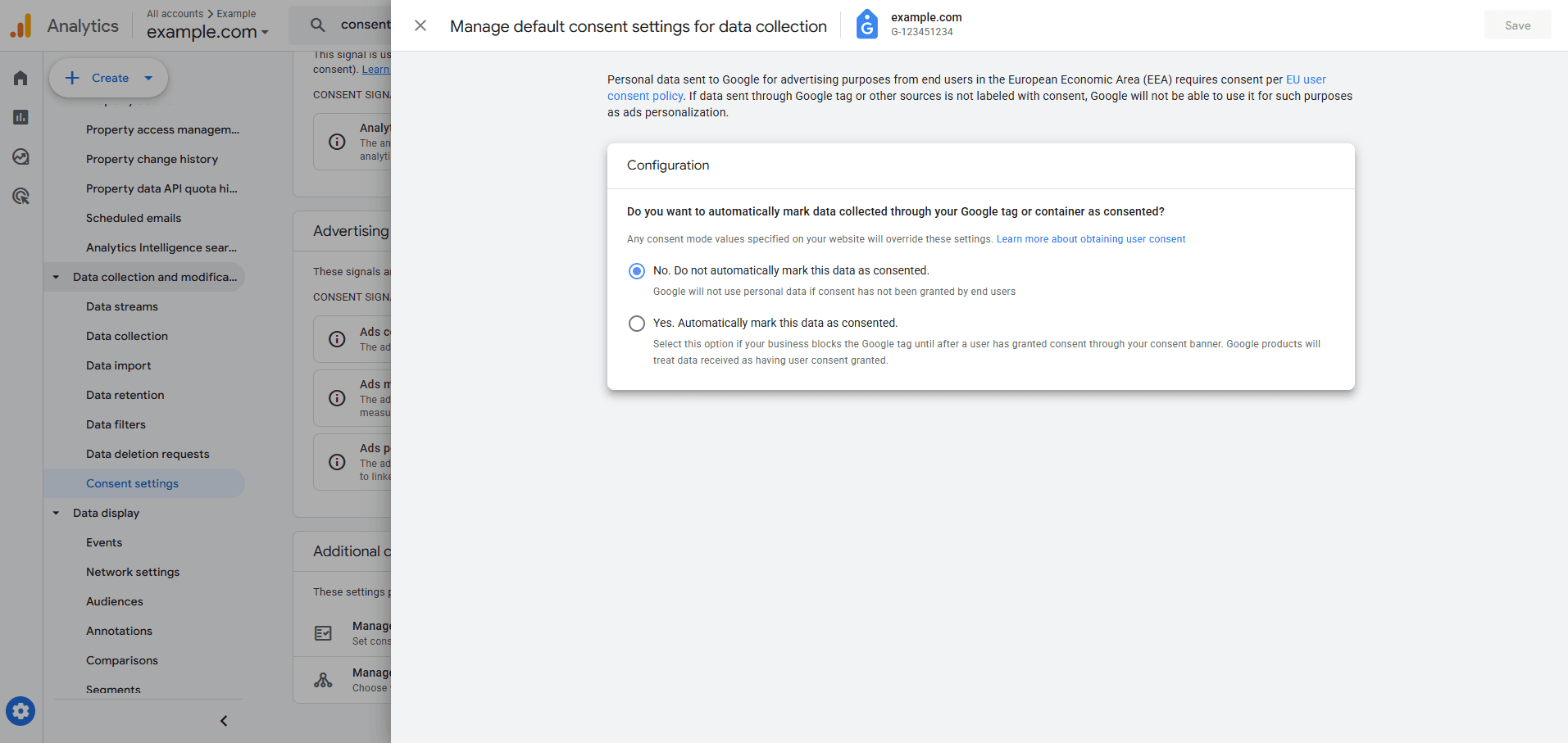
1) In Consent Settings
Location: Admin → Data collection and modifications → Consent settings → Manage default consent settings for data collection
- Open Google Analytics and select the correct GA4 property.
- Click Admin (gear icon).
- Go to Data collection and modifications → Consent settings.
- Click Manage default consent settings for data collection.
- Set the configuration to: No. Do not automatically mark this data as consented.
- Click Save.
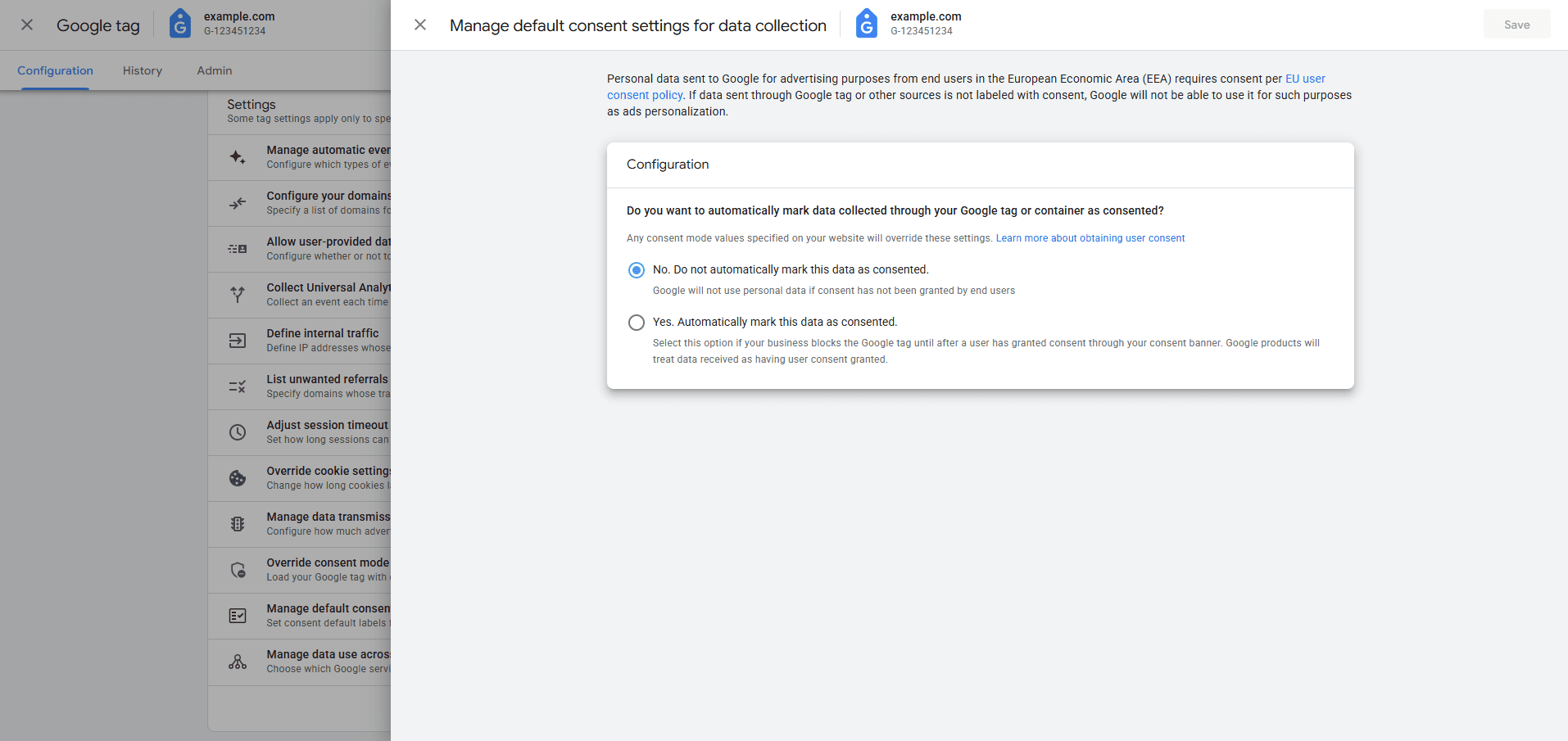
2) In Tag Settings
Location: Admin → Data collection and modifications → Data streams → (select your stream) → Configure tag settings → Manage default consent settings for data collection
- Open Google Analytics and select the correct GA4 property.
- Click Admin (gear icon).
- Go to Data collection and modifications → Data streams.
- Select your Web data stream.
- Click Configure tag settings.
- Open Manage default consent settings for data collection.
- Set the configuration to: No. Do not automatically mark this data as consented.
- Click Save.
Google Ads
1) In Consent Settings → Website Data
Location: Tools → Data Manager → Consent settings → Website data → Default consent settings → Manage
- Open Google Ads and choose the correct account.
- Click Tools → Data Manager.
- Select Consent settings.
- Under Website data, find Default consent settings and click Manage.
- Set the configuration to: No. Do not automatically mark this data as consented.
- Click Save.
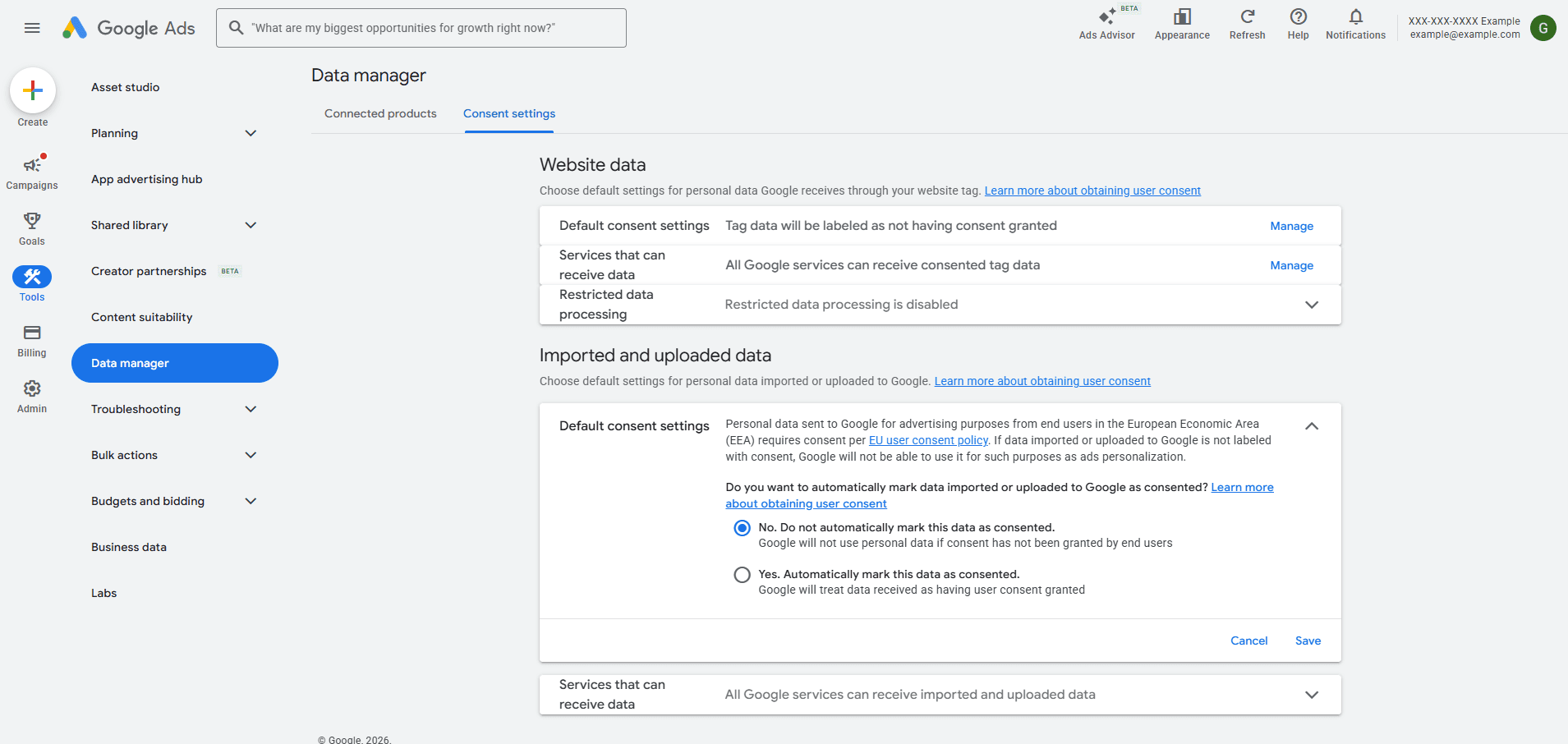
2) In Consent Settings → Imported and Uploaded Data
Location: Tools → Data Manager → Consent settings → Imported and uploaded data → Default consent settings
- Open Google Ads and choose the correct account.
- Click Tools → Data Manager.
- Select Consent settings.
- Under Imported and uploaded data, open Default consent settings.
- Set the configuration to: No. Do not automatically mark this data as consented.
- Click Save (if shown).
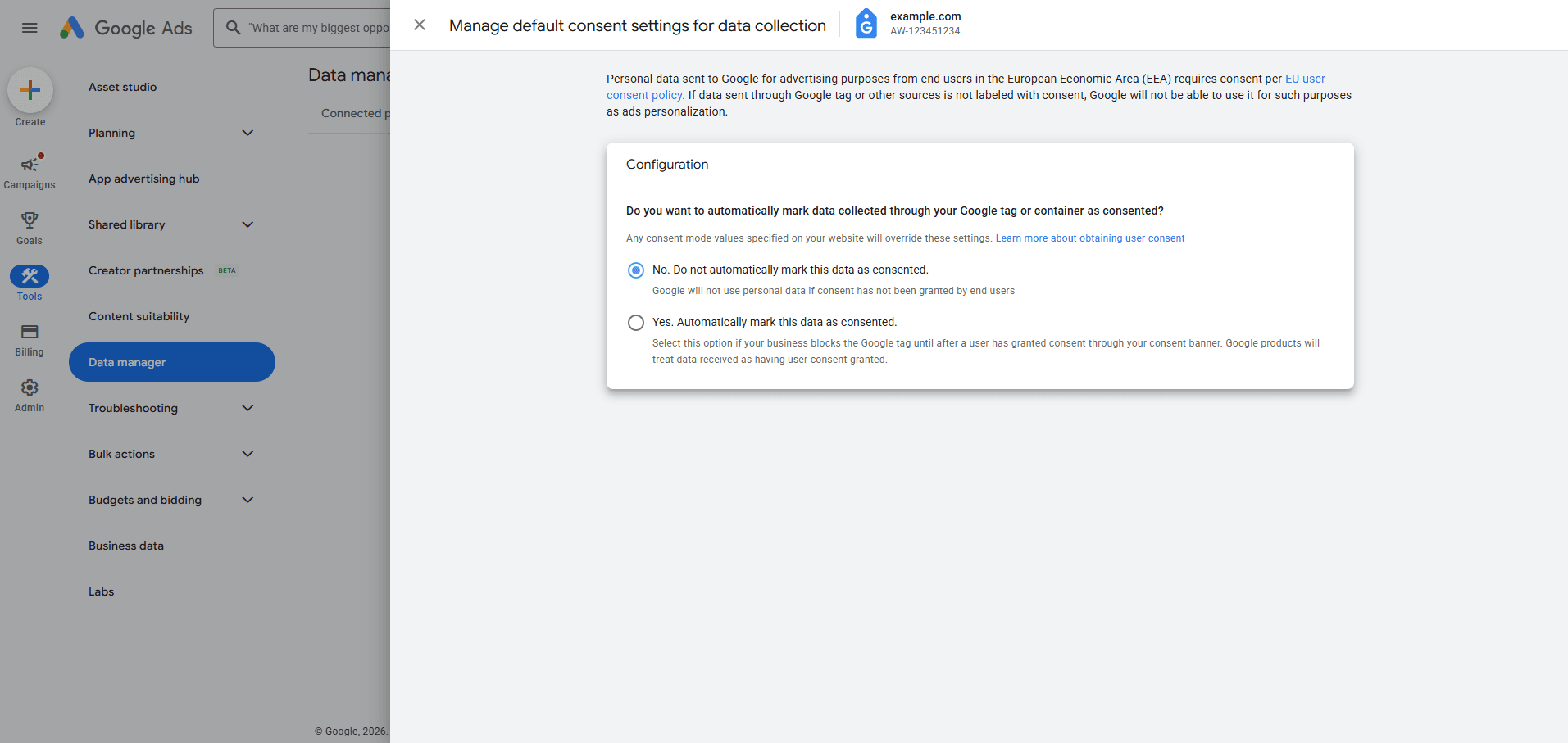
3) In Tag Settings
Location: Tools → Data Manager → Connected Products → Google Tag → Manage → Manage default consent settings for data collection
- Open Google Ads and choose the correct account.
- Click Tools → Data Manager.
- Select Connected Products.
- Find Google Tag and click Manage.
- Open Manage default consent settings for data collection.
- Set the configuration to: No. Do not automatically mark this data as consented.
- Click Save.