Use development/stage mode on non-production domains
CookieHub requires the domain to match the one created in the dashboard to store user choices. When using CookieHub on a different domain, the consent dialog will appear on every page view since the choice isn't stored. This can be problematic in development and staging environments where a different top-level domain is used. The issue can be easily resolved when implementing CookieHub with Google Tag Manager. You can dynamically populate the "Production" property in the CookieHub tag using a variable that detects the hostname.
Follow these steps to ensure CookieHub operates in production mode only for the designated production domain, while using development mode for other domains:
- Log in to Google Tag Manager.
- Click on the "Variables" section on the left.
- Click the New button in "User-Defined variables"
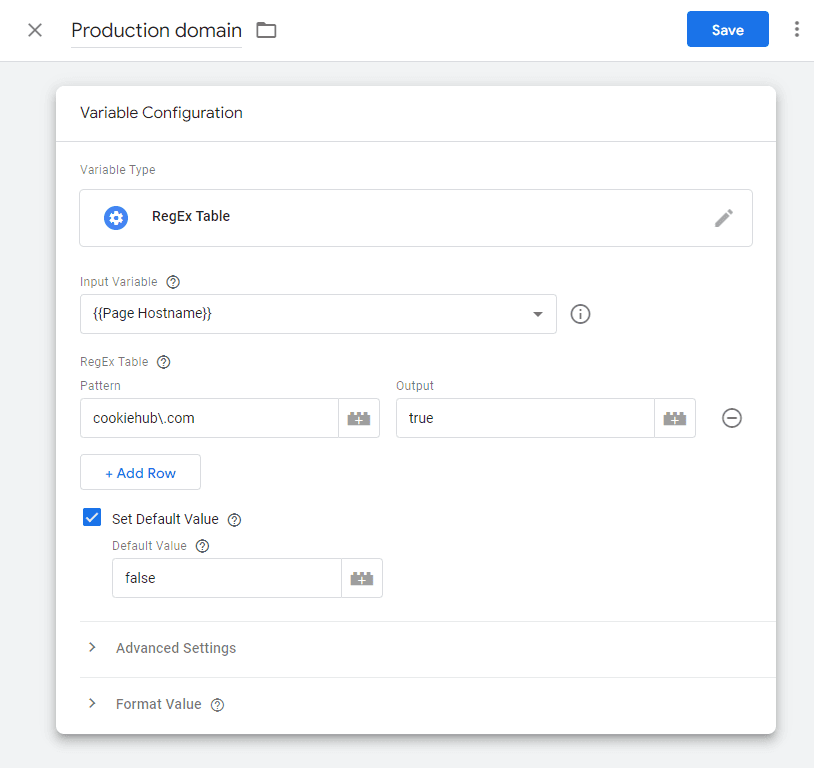
- Choose "RegEx Table "as the variable type
- Select {{Page Hostname}} as the "Input Variable".
- In the RegEx Table, add a row and specify the production domain (e.g., cookiehub.com). Please note that special characters need to be escaped so put a backward slash in front of dots.
- Set the Output value for the pattern to true.
- Check the "Set Default Value" option and set the Default value to false.
- From the "Advanced Settings", uncheck both "Full Matches Only" and "Enable Capture Groups and Replacement Functionality".
- Provide a name for the new variable and save it.
- Go to the "Tags" section and locate the CookieHub tag.
- Click the Edit icon to modify the tag configuration.
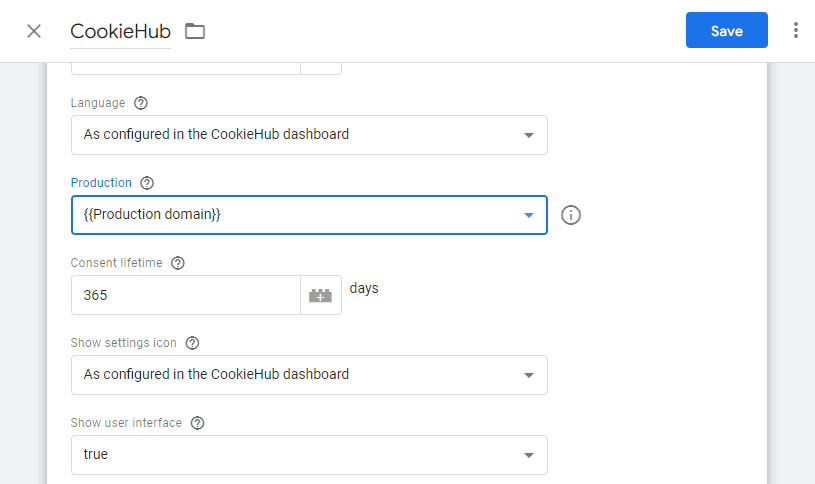
- Look for the "Production" field and select the newly created variable from the dropdown list.
- Save the changes to the CookieHub tag.
- Publish the changes in Google Tag Manager to make them live on your website.