Multiple domains using same GTM code
CookieHub requires the domain to match the one created in the dashboard to store user choices. When using the same Google Tag Manager code for multiple top level domains, you'll have to create all domains in your CookieHub account and adjust the CookieHub GTM tag to use the correct domain code based on the top level domain being viewed.
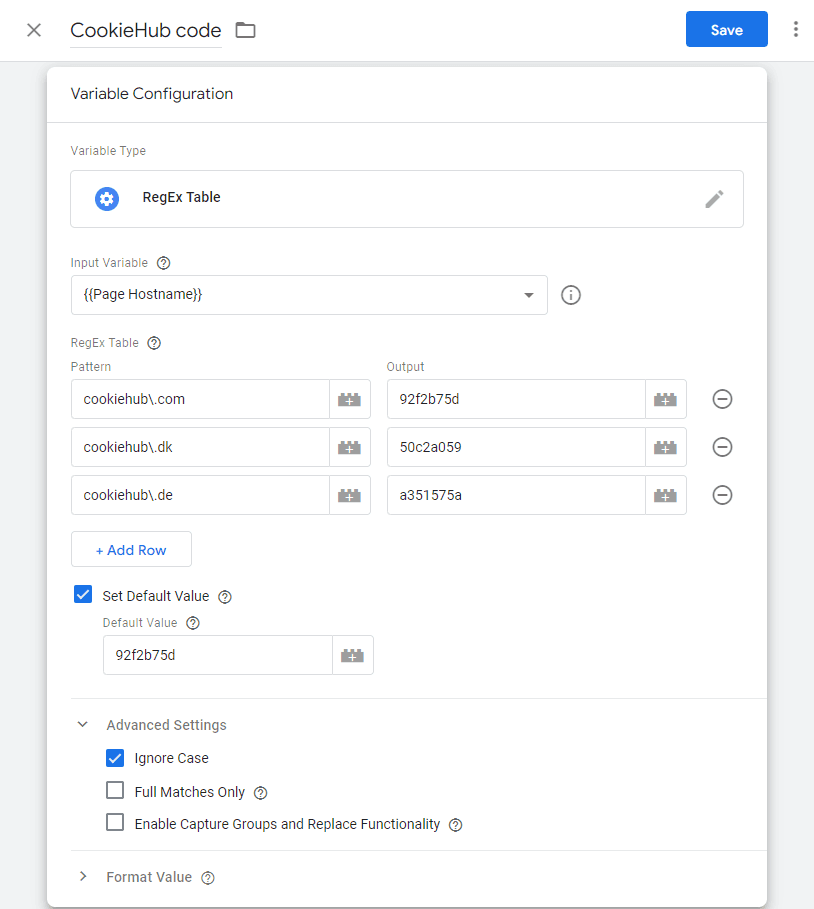
Follow these steps to create a RegEx Table variable, detecting the domain name and populating the CookieHub domain code accordingly:
- Log in to Google Tag Manager.
- Click on the "Variables" section on the left.
- Click the New button in "User-Defined variables"
- Choose "RegEx Table "as the variable type
- Select {{Page Hostname}} as the "Input Variable".
- In the RegEx Table, add rows for all domains and type one top level domain in each row. Please note that special characters need to be escaped so put a backward slash in front of dots.
- Type the domain code for each top level domain as the Output value.
- From the "Advanced Settings", uncheck both "Full Matches Only" and "Enable Capture Groups and Replacement Functionality".
- Provide a name for the new variable (ex. CookieHub Code) and save it.
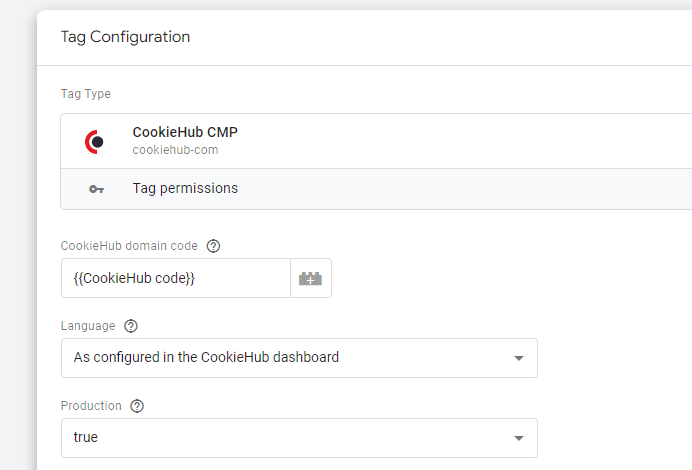
- Go to the "Tags" section and locate the CookieHub tag.
- Click the Edit icon to modify the tag configuration.
- Look for the "CookieHub domain code" field and select the newly created variable from the dropdown list.
- Save the changes to the CookieHub tag.
- Publish the changes in Google Tag Manager to make them live on your website.