Wingify
Configure Wingify to use the visitor's CookieHub consent preferences.
Wingify (formerly VWO) supports CookieHub as a consent manager. You can configure the integration in your Wingify account without adding integration code to your website or enabling additional settings in CookieHub.
Wingify reads the visitor's consent preferences from CookieHub and uses them to control its campaigns and tracking.
Requirements
- CookieHub version 2.8.13 or newer.
- Wingify's Advanced Cookie Consent Handling feature, which allows you to select CookieHub in the consent manager dropdown.
Use CookieHub 2.9.2 or newer if your domain is currently on 2.9.0 or 2.9.1. These two versions have an issue with cookiehub.isReady() that can prevent Wingify from initializing when CookieHub loads first and the visitor has not yet made a consent choice.
If Automatic Updates is enabled in your domain settings, CookieHub updates automatically.
Select CookieHub in Wingify
-
In Wingify, go to Configurations > Websites and Apps and select your website.
-
Open the Code tab.
-
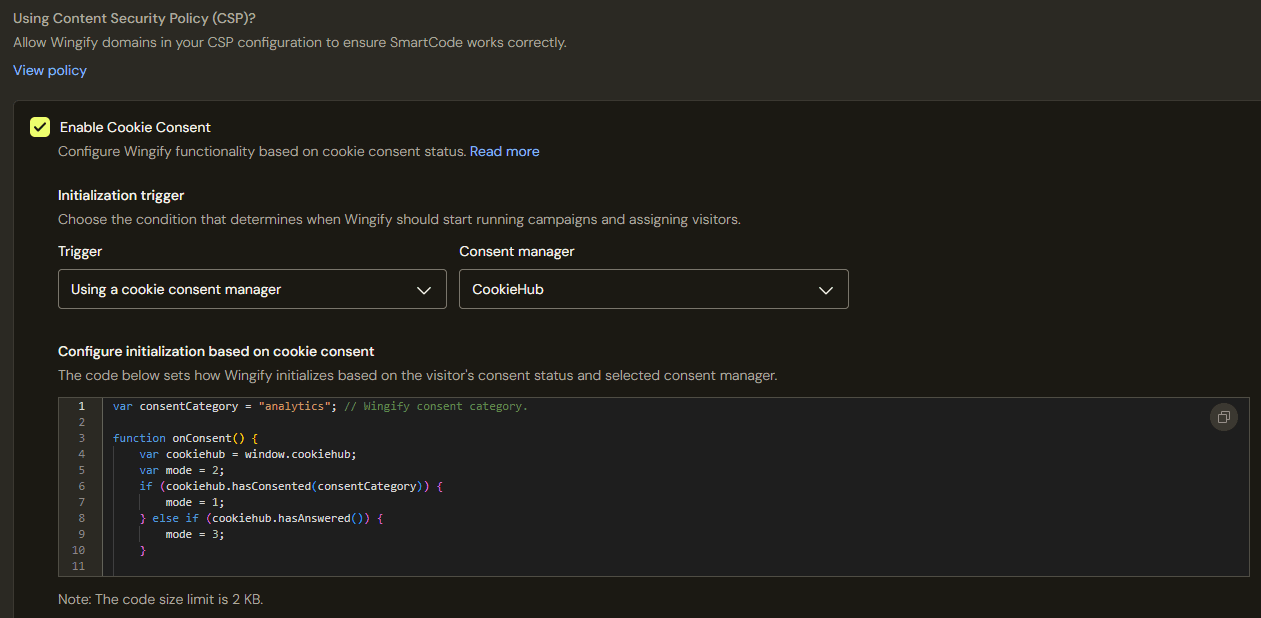
Check Enable Cookie Consent.
-
Under Initialization trigger, set Trigger to Using a cookie consent manager and Consent manager to CookieHub.
Wingify automatically adds the integration code under Configure initialization based on cookie consent. By default, this code checks consent for the Analytics category.
-
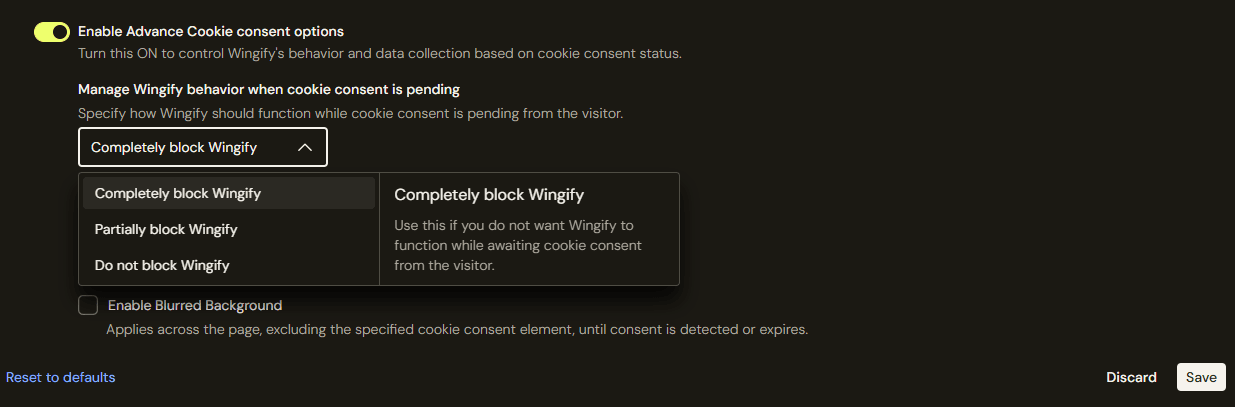
To apply consent handling to Web Experimentation, Web Personalization and Web Rollout, turn on Enable Advance Cookie consent options. Under Manage Wingify behavior when cookie consent is pending, select how Wingify should behave before the visitor makes a consent choice.
-
Click Save.
Consent category
The integration checks the Analytics category by default. The category is defined near the beginning of the generated code:
var consentCategory = "analytics";Wingify receives one of three consent states:
- Accepted: CookieHub allows the selected category, including through implied consent where configured.
- Declined: The visitor has made a consent choice without allowing the selected category.
- Pending: Consent is not allowed and the visitor has not yet made a choice.
Group Wingify's services and cookies under the same category in CookieHub so that the consent options shown to visitors match the integration.
If you use another category, replace analytics with its name or ID, as supported by hasConsented().
Behavior while consent is pending
Wingify provides the following options for visitors who have not yet made a consent choice:
| Option | Behavior while consent is pending |
|---|---|
| Completely block Wingify | Prevents SmartCode from running and Wingify cookies from being set. |
| Partially block Wingify | Allows campaign changes to appear while withholding tracking calls. Cookies may be set unless you enable the option to wait for consent before storing data. This mode is unavailable for Behavior Analytics-only accounts. |
| Do not block Wingify | Allows SmartCode to run and cookies to be set before the visitor makes a consent choice. |
To prevent Wingify from running or setting cookies before consent, select Completely block Wingify.
These options control behavior while consent is pending. Wingify also responds when the visitor accepts or declines the selected category.
For details about campaign behavior and additional settings, see Configuring Wingify SmartCode for your website's cookie consent.
If your page briefly becomes blank after loading, see Known issues & workarounds.